
 Calls
 Phone numbers
 SMS
 Business Phone System
 CRM
 AI agent
 Call Tracking
 eSIM for Internet
 AI Speech Analytics
 Click to Call
 Price plans
 VoIP for Business
 Become a partner
 Integrations
 For whom
 Setup guides
 FAQ
 API Documentation
 Contact us
 Blog
Integrating Zadarma's cloud phone system with Famulor allows you to connect AI voice assistants to handle incoming and outgoing calls.
Integration features
- Direct SIP trunk connection between Zadarma's cloud PBX and the Famulor platform.
- Call forwarding to an external SIP URI for flexible call routing.
- Support for phone numbers in international format with multiple channels.
- Support for call transfers via SIP REFER to external numbers or PBX extensions.
What is required for setup
- A configured Zadarma cloud PBX (complete the quick setup wizard).
- An active Famulor account.
- At least one active PBX extension.
Setup steps
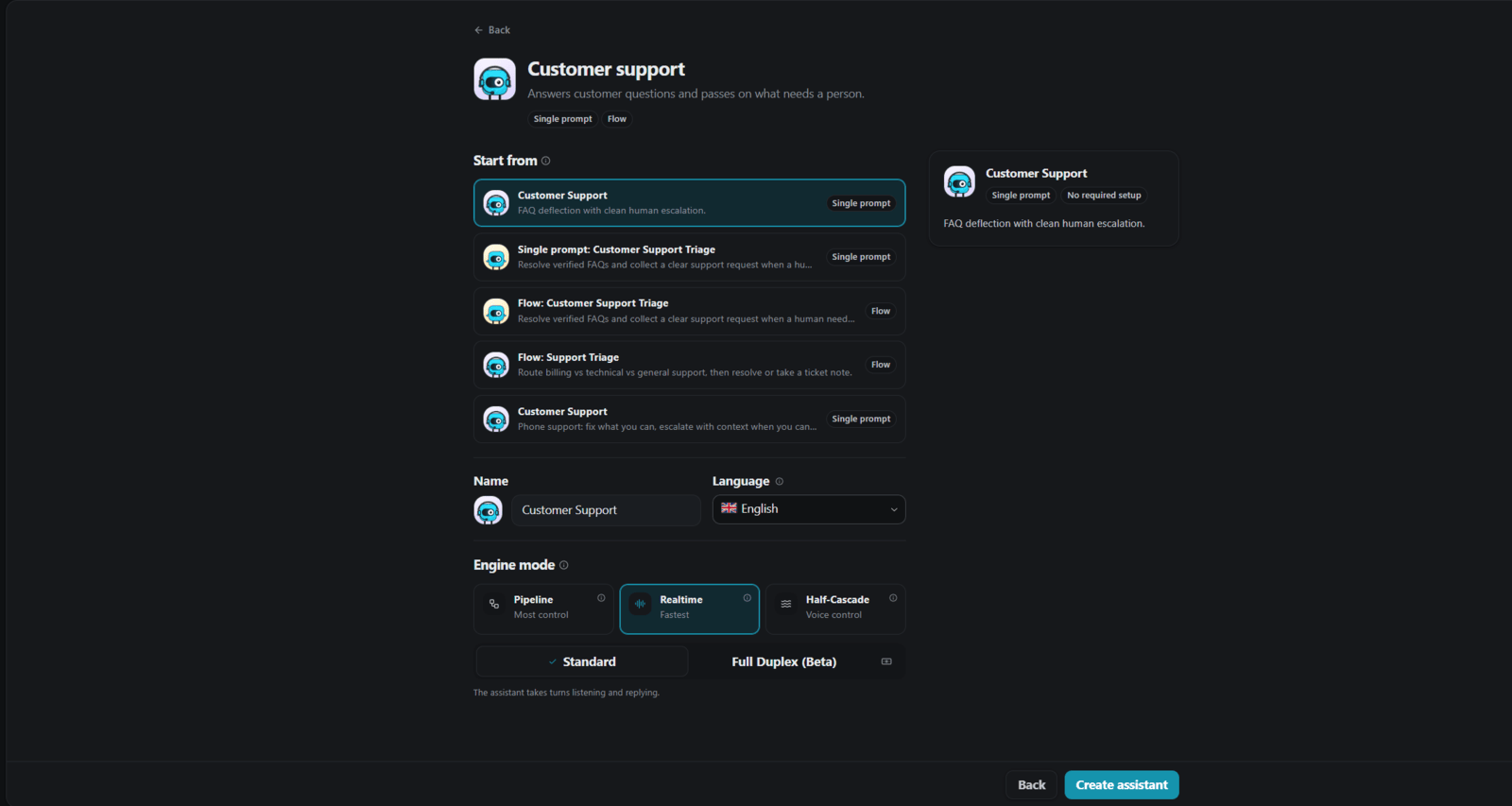
1. Create an AI voice agent
Log in to your Famulor account and navigate to Agents – Assistants.
If you don't have a voice agent yet, create one. Click Create assistant, select an agent type, such as Support agent, and complete the initial setup.
2. Connecting Zadarma to Famulor
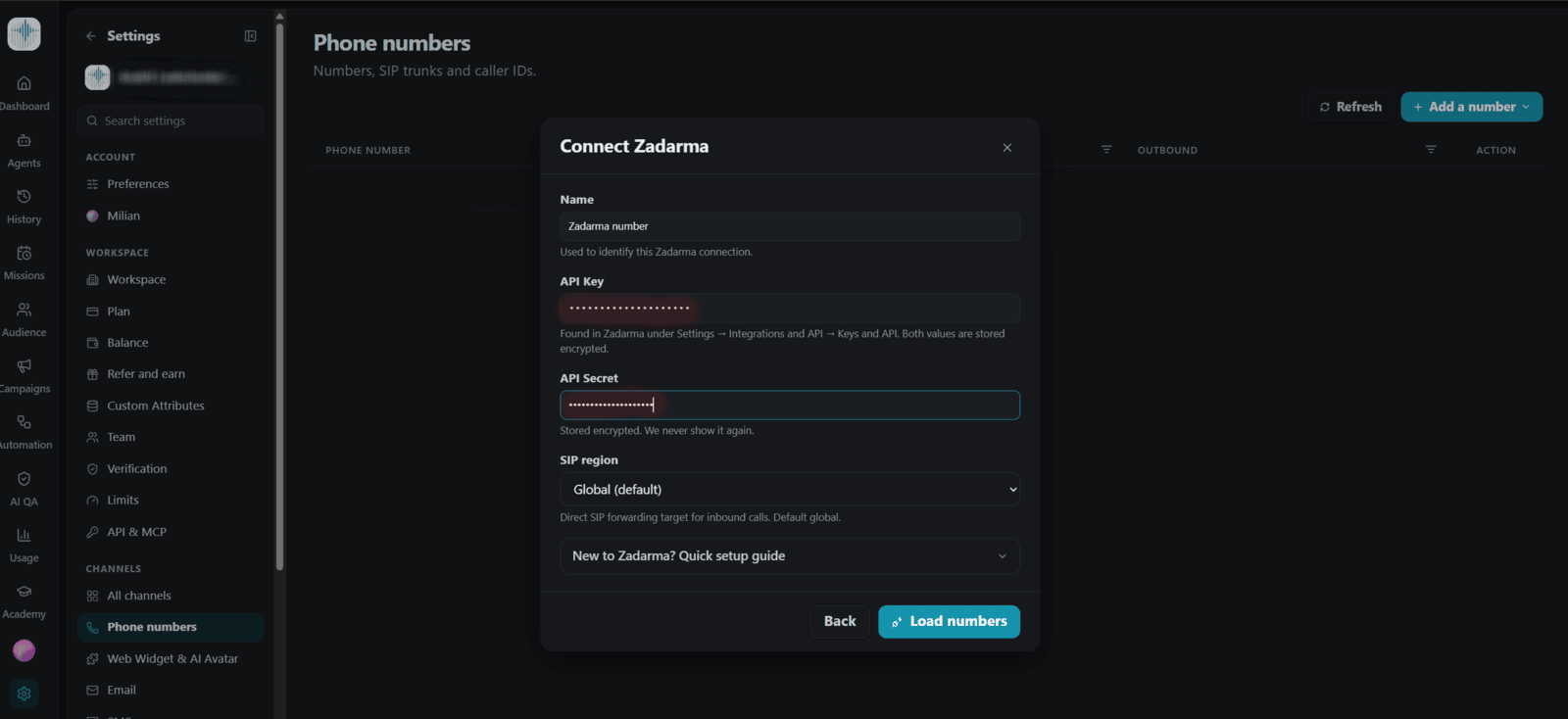
Option 1: Automatic import
Go to Workspace Settings → Phone Numbers in your Famulor workspace, click +Add a number and select Import from your carrier.
Select Zadarma from the provider list and click Continue.
Select your SIP region, enter a connection name, and paste your Zadarma API Key and Secret. You can find these in the Keys and API section of your Zadarma account.
To import your Zadarma numbers, load the available numbers, select the active number you want to import, and save your settings. Incoming call routing and the associated SIP account will be configured automatically.
Option 2: Manual trunk setup
Go to Workspace Settings → Phone numbers → +Add a number → Add SIP integration and fill in the fields as follows:
- Trunk type and number - PBX extension
- Inbound authentication - Provider source IPs
In the allowed sources field, enter the following Zadarma PBX IP addresses:
- 185.45.152.164/32
- 185.45.152.177/32
- 185.45.152.200/32
- 185.45.155.14/32
- 185.45.155.16/32
- 195.122.19.20/32
- 195.122.19.29/32
- 15.235.128.70/32
- 31.31.222.201/32
- 185.45.154.15/32
Additional settings:
- Outbound termination address - pbx.zadarma.com
- Transport - TCP
- Outbound SIP username - Your PBX extension from your Zadarma account, for example, 123456-100.
- SIP password - Your PBX extension password. You can generate one here.
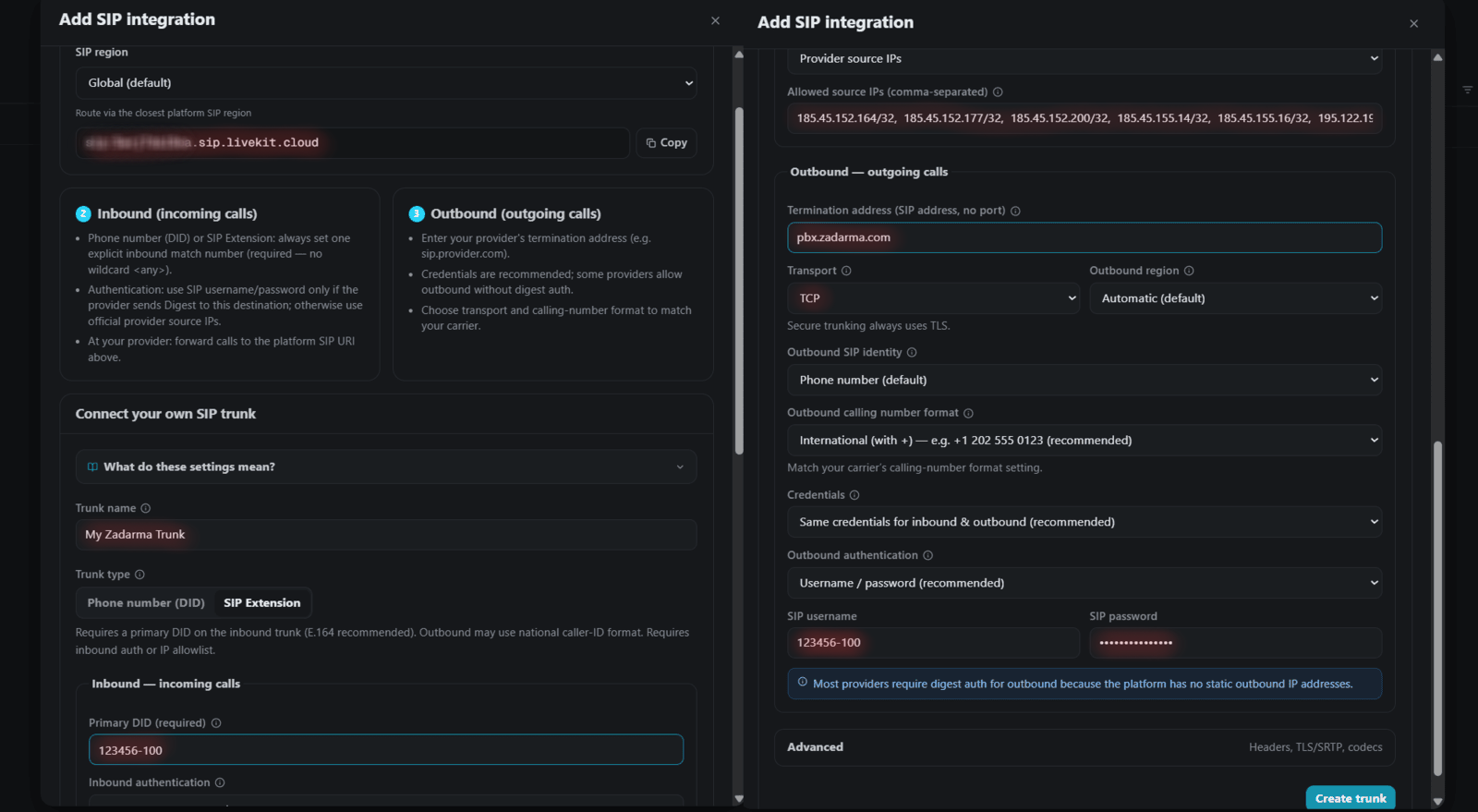
Leave media encryption, codecs and all other settings at their default values, then click Create Trunk.
3. Assigning an AI voice agent to the Zadarma trunk
Open the trunk (number) you just created and select an AI voice agent for incoming and outgoing calls.
4. Routing Calls to Famulor
To forward incoming calls from your Zadarma virtual number to your AI agent in Famulor:
- In your Zadarma account, go to My PBX → Extensions.
- In the extension settings, find "Call Forwarding and voicemail", and click "Enable".
- Select a forwarding condition, such as "Always active".
-
Under "Forward to" select"External server (SIP URI)".
In the field that appears, enter
+15551111111xxxxxxx.sip.livekit.cloud, replacing +15551111111 with your virtual number in international E.164 format and xxxxxxx with your Famulor SIP endpoint address (see Step 2, Option 2). - Click "Save".
Your AI voice agent is now fully configured to handle incoming and outgoing calls.
5. Call transfer from Famulor
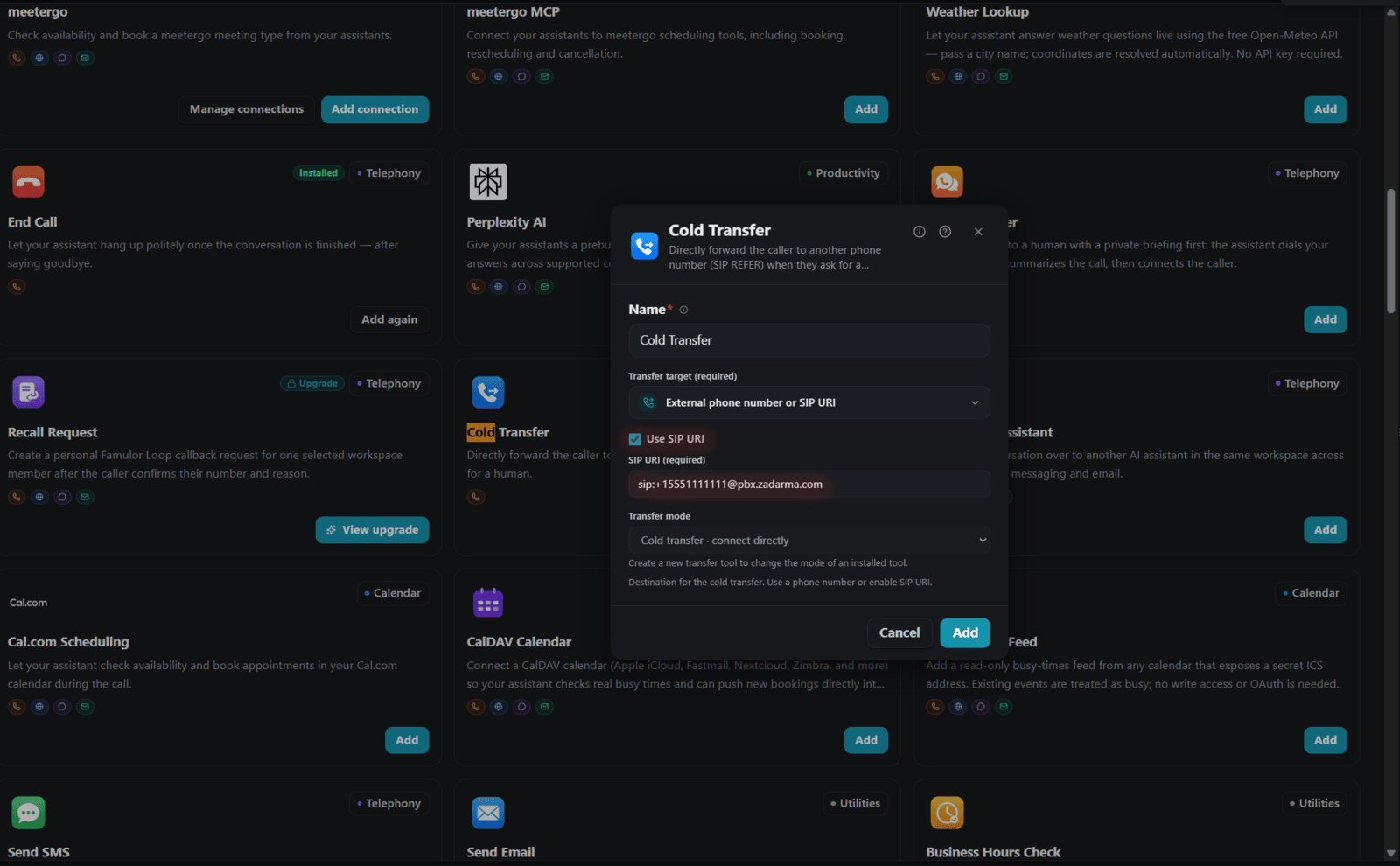
If you want to use the advanced call transfer feature, configure the SIP REFER method. This allows Famulor AI agents to transfer active calls to PBX extensions or external phone numbers.
Supported destination formats:
- External number:
sip:+15551111111@pbx.zadarma.com - PBX extension:
sip:101@pbx.zadarma.com
Call transfer rule configuration:
- Go to Agents → Assistants, select your agent, click Settings and open the Tools section.
- Click Create new tool, select Cold transfer from the Agent Tools list, and configure the transfer settings.
- Return to the agent settings, find the newly created transfer tool under Available in your workspace and click the + button to assign it to your AI agent.
Still have questions?
-
 Online chat
-
 Contact us
-
Setup instructions
-
 Blog